Add a Device to a User
You can manually add a single device (usually a phone) to a user.
|
1.
|
In the Manage Users page (Setup > Users & Devices > Manage Users), locate the row of the user. |
|
2.
|
Click + under the Actions column in the row. |
|
3.
|
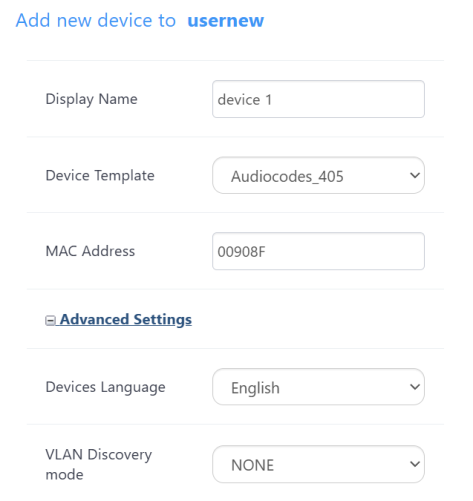
Enter the 'Display Name', i.e., the device's name to be displayed in Device Manager. |
|
4.
|
From the 'Device Template' drop-down, select a template. |
|
5.
|
Enter the 'MAC Address'. MAC prefix format example: mac": "00171905c48a |
|
●
|
AudioCodes MAC addresses' prefixes can be one of the following: |
|
●
|
Prior to Version 8.2.3000, AudioCodes had only "00908F" |
|
●
|
From Version 8.2.3000 and later, AudioCodes has "00908F" as well as "001719". |
|
●
|
Each vendor has its own MAC prefixes. |
|
6.
|
From the 'Firmware' drop-down, select the firmware relevant to the phone. |
|
7.
|
[Optional] Expand +Advanced Settings. |
|
●
|
From the 'Devices Language' drop-down, select the language you want the phone interface to display. |
|
●
|
From the 'VLAN Discovery mode' drop-down, select the requested option. See here for more information. |
|
8.
|
Click Submit and then click Back to return to the Users page. Under the Devices column of the user's row, a '1 Device' link is added. If the user has additional devices, the total number of devices is reflected in the link. |